You can spend a long time writing a useful blog post, email, assignment, website page, social media caption, or document, only to look at the finished text and feel that something is wrong.
The information may be correct. The sentences may be clear. Yet the page still looks messy.
Maybe some headings are capitalized differently. Perhaps there are double spaces between words, large blocks of text with no paragraph breaks, random uppercase sentences, or strange formatting copied from another website.
These small problems can make otherwise good content harder to read and less professional.
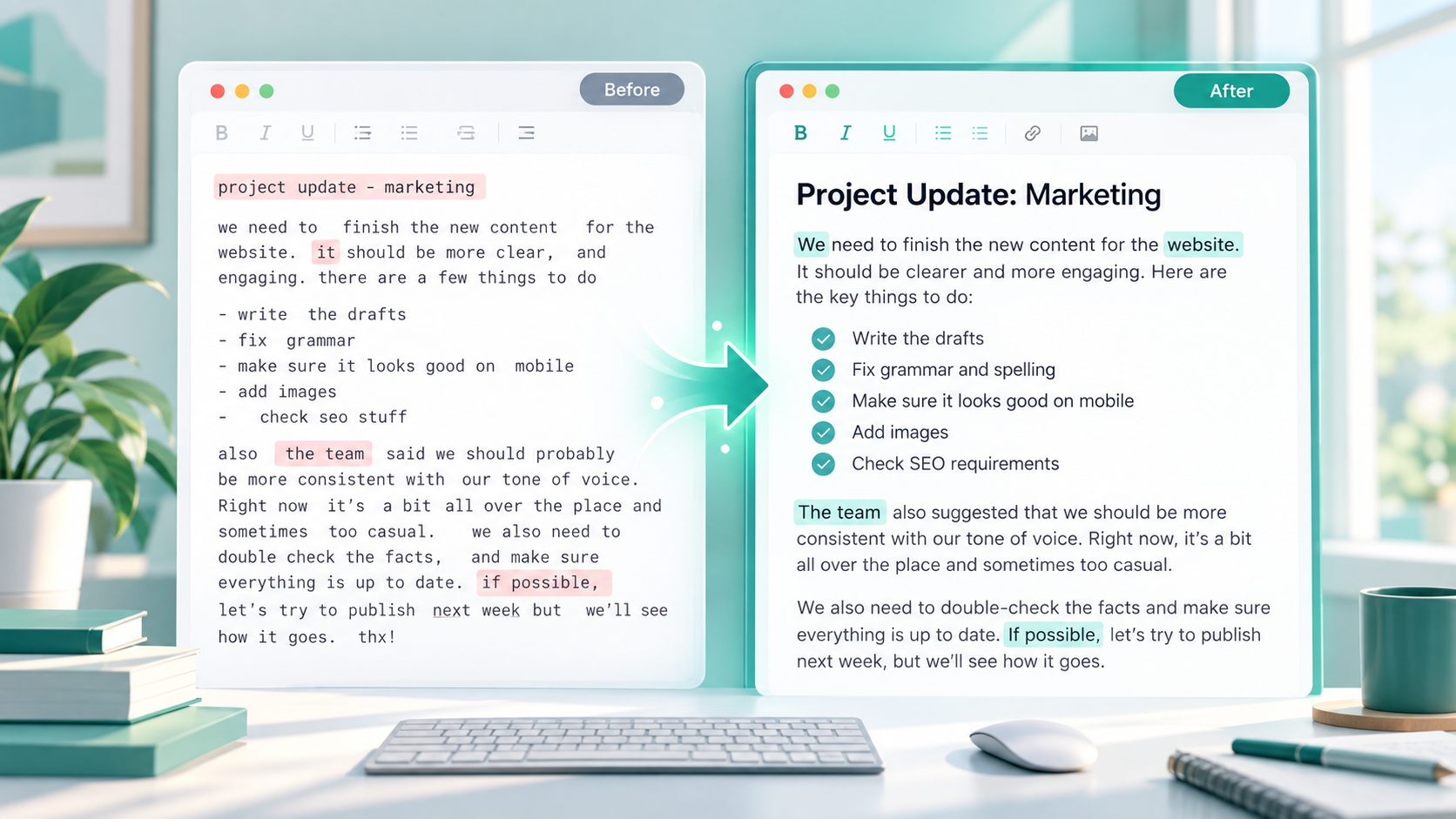
Fortunately, most common text formatting mistakes are easy to fix once you know what to look for. This guide covers the problems that appear most often and shows practical ways to turn messy text into clean, readable content.
Why Text Formatting Matters
Text formatting is not only about making a page look attractive. It directly affects how easily people can understand what you have written.
Clean formatting helps readers scan a page, identify important sections, and follow your ideas without unnecessary effort.
It also affects professionalism. A business email with random capitalization and unusual spacing may look careless even when the message itself is important. A website page with inconsistent headings can make the site feel unfinished. An assignment with crowded paragraphs can be harder for a teacher to review.
Good formatting improves several parts of the reading experience:
Readability
Clarity
Professional appearance
Consistency
User experience
Trust
Formatting becomes even more important on mobile devices because readers have less screen space. Long paragraphs, excessive uppercase text, and unnecessary blank lines can quickly make mobile content uncomfortable to read.
The goal is not to make every sentence visually fancy. The goal is to make the text feel organized and effortless to follow.
Mistake 1: Using Too Much Uppercase
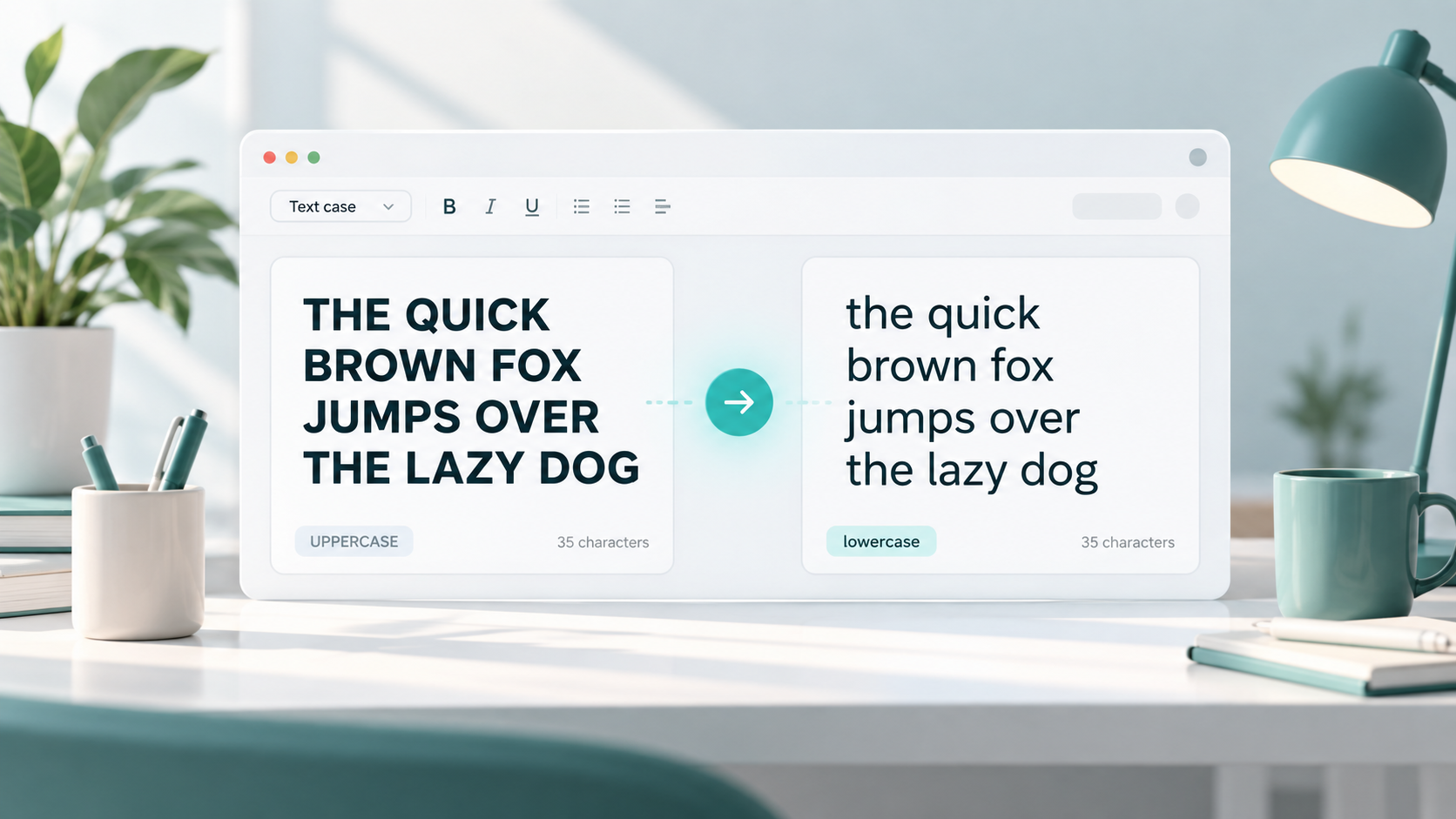
Uppercase text can be useful for short labels, abbreviations, or occasional emphasis. Problems begin when entire sentences or paragraphs are written in capital letters.
Messy:
THIS IS A FULL PARAGRAPH WRITTEN IN UPPERCASE AND IT FEELS LOUD.
Better:
This is a normal sentence that is easier to read.
Large amounts of uppercase text are usually harder to scan because every word has a similar visual shape. It may also feel aggressive or overly promotional.
For example, compare these two messages:
Messy:
PLEASE READ THIS INFORMATION BEFORE SUBMITTING YOUR FORM BECAUSE MISSING DETAILS MAY DELAY THE PROCESS.
Better:
Please read this information before submitting your form because missing details may delay the process.
The second version communicates the same information without making the reader feel like the message is shouting.
How to fix it
Use normal sentence capitalization for paragraphs and ordinary instructions.
Reserve uppercase for situations where it genuinely makes sense, such as:
Short interface labels
Common abbreviations
Small warning labels
Acronyms
If you receive a large block of uppercase text, converting it manually can be tedious. A case conversion tool can quickly change uppercase text into lowercase, sentence case, or another suitable format.
You can also read the Use Case Converter if you want a clearer explanation of when different letter cases should be used.
Mistake 2: Random Capitalization
Random capitalization is one of the easiest ways to make text look inconsistent.
It happens when uppercase letters appear without a clear reason.
Messy:
Our Website Helps You convert TEXT into Different Formats quickly.
Better:
Our website helps you convert text into different formats quickly.
The messy version is still understandable, but the changing capitalization distracts from the sentence.
Another common example is writing several similar headings differently:
How To Improve Your Writing
how to check your grammar
Best Tips FOR Beginners
Even if each heading makes sense individually, they do not feel like part of the same page.
How to fix it
Choose a capitalization style and use it consistently.
For regular paragraphs, sentence case is usually the safest choice.
For headings, you might use either:
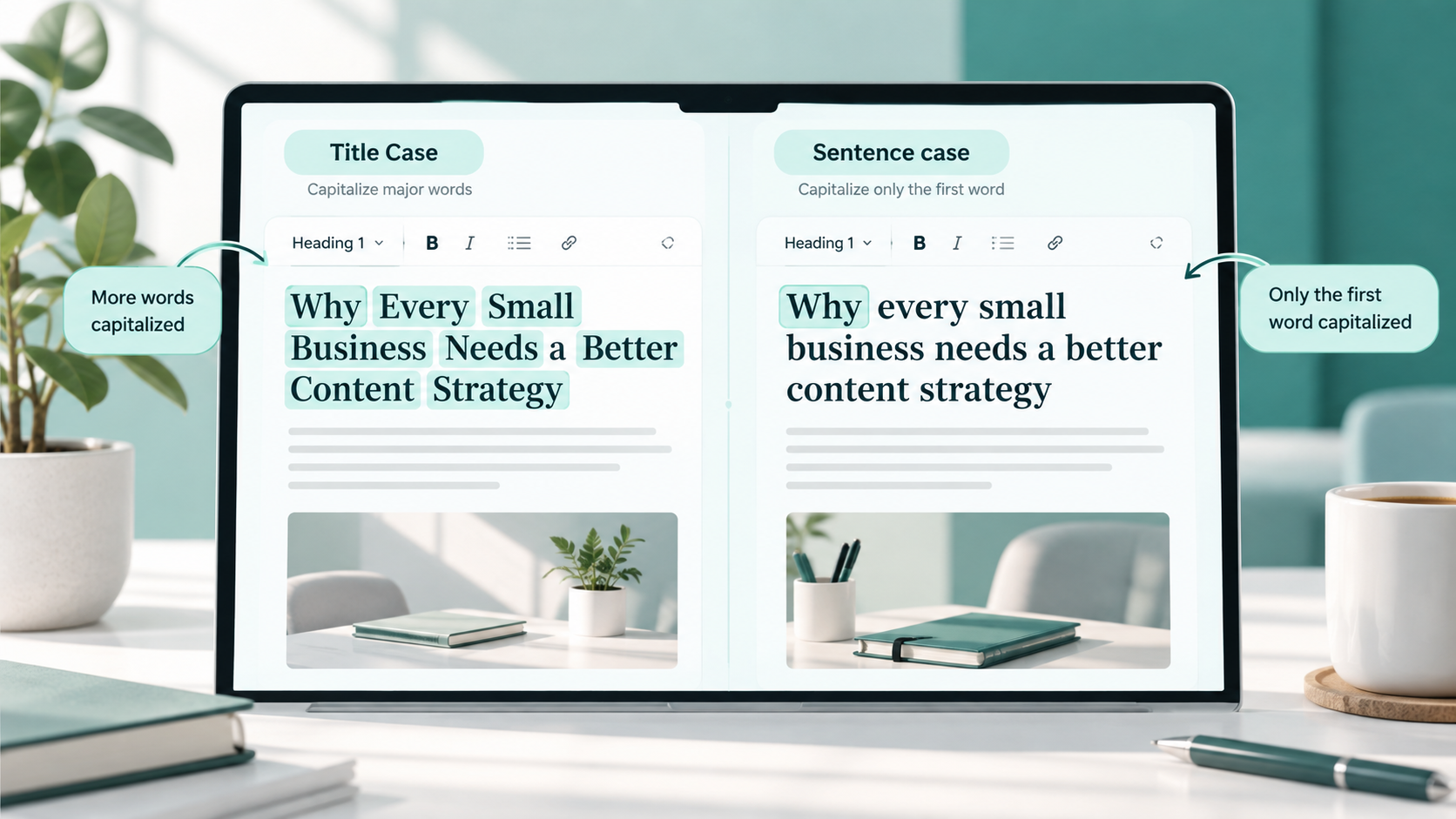
Title Case
Sentence case
The specific choice is often less important than consistency.
If you are dealing with a large amount of incorrectly capitalized text, a case converter can save time by applying a consistent format automatically.
Mistake 3: Inconsistent Headings
Headings organize an article or webpage into clear sections. When headings follow different styles, the page can look unpolished.
For example:
Messy heading styles:
How To Improve Your Content
common formatting problems
WHY SPACING MATTERS
Fixing punctuation Mistakes
A cleaner version would use one consistent style:
How to Improve Your Content
Common Formatting Problems
Why Spacing Matters
Fixing Punctuation Mistakes
Or, using sentence case:
How to improve your content
Common formatting problems
Why spacing matters
Fixing punctuation mistakes
Both approaches can work.
Title case vs sentence case
Title case usually capitalizes major words in a heading.
Example:
Common Text Formatting Mistakes
Sentence case generally capitalizes only the first word and proper nouns.
Example:
Common text formatting mistakes
Different websites and publications use different heading styles. What matters most is choosing one approach and following it throughout the article or website.
Also keep the heading structure logical. Main sections should use the same heading level, while smaller sections should appear underneath them as subheadings.
Mistake 4: Poor Spacing Between Words and Lines
Spacing problems often appear after editing, copying, or combining text from different sources.
Examples include:
Double spaces between words
Missing spaces between words
Several unnecessary blank lines
No spacing between paragraphs
Large empty gaps in the middle of content
Messy:
This sentence has several unnecessary spaces.
Better:
This sentence has several unnecessary spaces.
Another example:
Messy:
Please submit the form.We will review it tomorrow.
Better:
Please submit the form. We will review it tomorrow.
Spacing may seem like a minor detail, but repeated errors can make a page feel careless.
How to fix it
Review the text for repeated spaces and missing spaces.
If your editor has search-and-replace functionality, you can often search for two spaces and replace them with one.
For paragraphs, use consistent spacing rather than manually pressing Enter many times.
You should also avoid adding spaces simply to position text visually. Layout should normally be controlled by the website or document styling rather than by inserting dozens of spaces.
Mistake 5: Long Paragraphs Without Breaks
A paragraph can be grammatically correct and still be difficult to read.
Long blocks of text are especially uncomfortable on phones, where a single paragraph may fill most of the screen.
Imagine opening an article and seeing hundreds of words with no visual break. Even useful information can feel tiring before the reader starts.
How to fix it
Break long paragraphs when the idea changes or when the reader needs a natural pause.
For online writing, short to medium paragraphs are often easier to scan.
You do not need to follow an exact sentence limit. Instead, ask whether the paragraph contains too many separate ideas.
For example, a paragraph discussing readability, headings, mobile screens, punctuation, and website design could probably be divided into several smaller paragraphs or sections.
Subheadings are also helpful when moving to a new topic.
Instead of presenting everything as one continuous block, create clear sections that guide the reader through the content.
Mistake 6: Ignoring Punctuation Spacing
Incorrect punctuation spacing is common in quickly written text and copied content.
Messy:
Hello ,how are you ?I hope everything is fine .
Better:
Hello, how are you? I hope everything is fine.
In standard English writing, you normally do not place a space before commas, periods, question marks, or exclamation marks.
There should usually be one space after punctuation when another sentence or word follows.
Consider another example:
Messy:
Features include counting,case conversion,and text cleaning.
Better:
Features include: Word counting, case conversion, and text cleaning.
Brackets can also cause problems.
Messy:
Download the file ( PDF ) after saving.
Better:
Download the file (PDF) after saving.
How to fix it
Pay attention to:
Commas
Periods
Colons
Semicolons
Question marks
Exclamation marks
Brackets
If the content is important, read it slowly once with formatting in mind rather than focusing only on grammar and meaning.
Mistake 7: Copying Text Without Cleaning Formatting
Copying text from another source can bring hidden or visible formatting with it.
This commonly happens when copying from:
Websites
Word processing documents
PDFs
Emails
Social media posts
Online editors
You may paste a paragraph and discover strange font sizes, unusual line breaks, inconsistent spacing, unexpected bold text, or headings that do not match the rest of your page.
Sometimes copied content looks fine initially but behaves differently after publishing.
How to fix it
When possible, paste copied material as plain text before applying your own formatting.
Then check:
Paragraph breaks
Capitalization
Spaces
Headings
Lists
Bold or italic text
Links
Punctuation
If you are moving your own content between applications, cleaning the formatting first can prevent inconsistent styles.
You should also review copied text carefully to make sure unnecessary navigation labels, page numbers, footer text, or other unrelated content has not been included accidentally.
Mistake 8: Using Different Styles for Similar Text
Similar elements should usually look and read consistently.
Suppose a website uses these button labels:
Download File
generate password
CONVERT TEXT
Check Now!
The actions may all work correctly, but the inconsistent capitalization creates a less polished interface.
The same issue appears with:
Buttons
Form labels
Headings
Captions
Navigation items
Product titles
Lists
Notifications
How to fix it
Create simple formatting rules for repeated elements.
For example:
Buttons:
Use title case.
Form labels:
Use sentence case.
Article headings:
Use title case.
Body text:
Use sentence case.
Once you establish a rule, follow it throughout the page or project.
Consistency reduces visual noise and makes an interface easier to understand.
Mistake 9: Not Checking Text Before Publishing
People often proofread spelling and grammar while overlooking formatting.
A sentence may be grammatically correct but still contain:
Double spaces
Random capital letters
Missing paragraph breaks
Inconsistent headings
Strange copied formatting
Unnecessary blank lines
These issues are easier to notice when you review the finished version rather than only the editing screen.
How to fix it
Before publishing, preview the content as a reader would see it.
Check the page from top to bottom.
Look at:
Heading consistency
Paragraph size
Capitalization
Spacing
Lists
Links
Punctuation
Mobile appearance
Reading the page aloud can help reveal awkward sentences, while visually scanning it can reveal formatting problems.
For important pages, it may also help to step away briefly and review the content again with fresh attention before publishing.
How to Fix Capitalization Mistakes Quickly
Correcting a few capital letters manually is easy.
Correcting several paragraphs of inconsistent uppercase, lowercase, title case, or sentence case can take much longer.
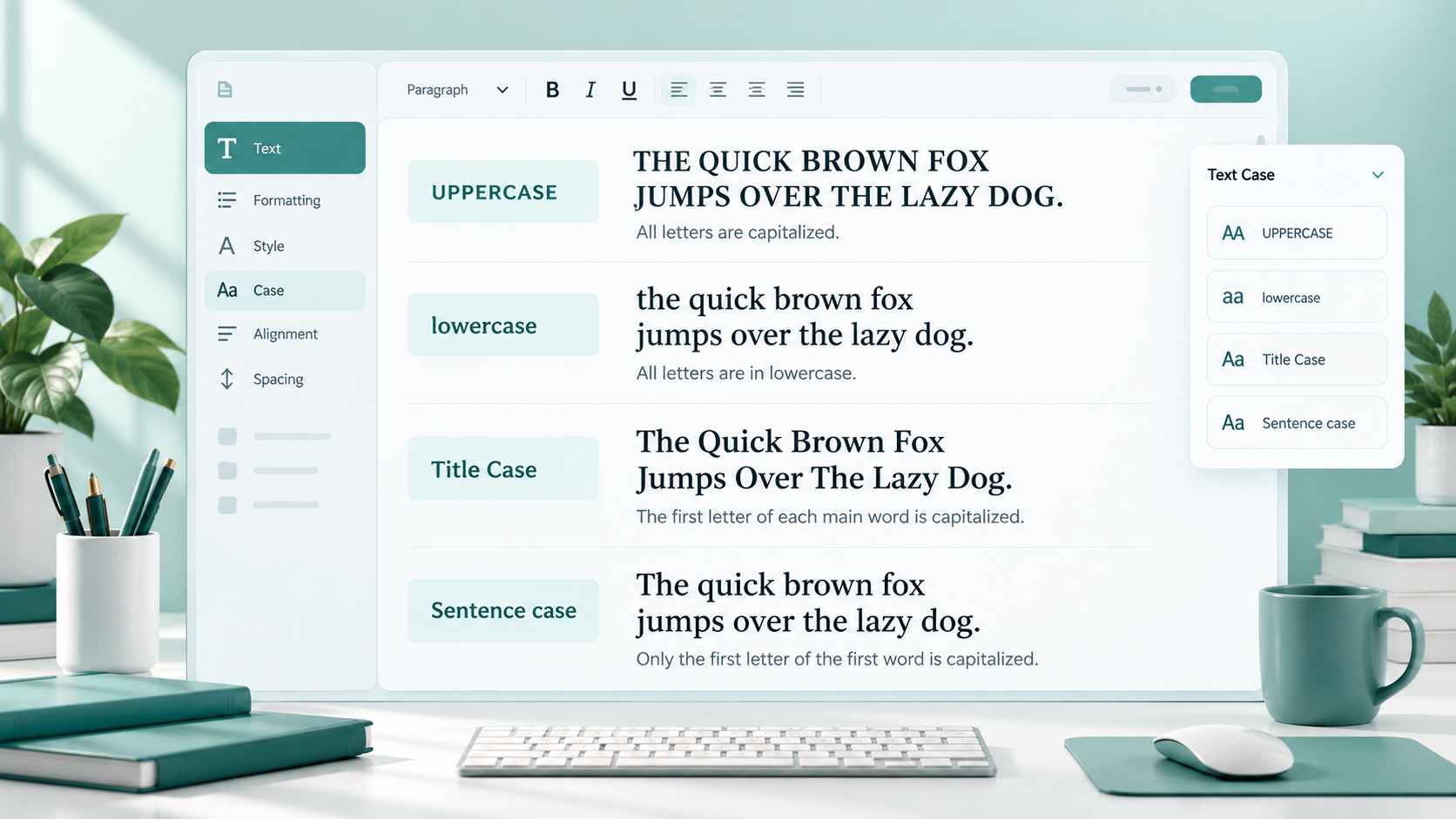
A case converter can simplify this task by transforming existing text into a consistent format.
For example, you might receive text like this:
WELCOME TO OUR website. HERE YOU CAN Find Useful Tools.
Instead of editing each word manually, you can convert the text into a cleaner case format and then review it.
The ToolNest Use Case Converter can be useful when you need to switch text between common capitalization styles.
Case Converter
Convert text to uppercase, lowercase, title case and more.
Typical options may include:
Uppercase
Lowercase
Title case
Sentence case
After converting the text, always review the result. Proper nouns, brand names, abbreviations, and specialized terms may still require manual correction.
Also be careful when using unfamiliar online text tools. Avoid pasting confidential client documents, passwords, private records, unpublished business information, sensitive personal data, or anything else that should remain private unless you understand how the service handles that information.
Simple Text Formatting Checklist
Before publishing or sending important text, use this quick checklist:
Check headings
Check capitalization
Remove extra spaces
Break long paragraphs
Clean copied text
Check punctuation spacing
Keep style consistent
Preview on mobile if possible
This short review can catch many formatting problems that are easy to miss while writing.
Common Text Formatting Mistakes in Different Use Cases
Formatting problems appear differently depending on where the text is being used.
Blog posts
Common problems include very long paragraphs, inconsistent headings, random bold text, excessive uppercase, and copied formatting from other sources.
Use clear section headings and keep paragraph sizes comfortable for online reading.
Website pages
Website pages often suffer from inconsistent button labels, different heading capitalization, irregular spacing, and mismatched text styles.
Repeated interface elements should follow consistent rules.
Emails
Emails can look unprofessional when they contain full-uppercase sentences, excessive blank lines, inconsistent fonts, or paragraphs that are too long.
Keep the message visually simple and easy to scan.
Social media captions
Captions often become difficult to read when they contain too many capital letters, symbols, line breaks, or punctuation marks.
Spacing can help structure a caption, but excessive formatting can make it feel cluttered.
Assignments
Assignments may lose clarity because of inconsistent headings, irregular paragraph spacing, or copied text that uses different fonts and styles.
Check the formatting requirements provided by your teacher, college, or institution.
Product descriptions
Product descriptions should use consistent capitalization for features, specifications, titles, and bullet points.
Avoid making random words uppercase simply to create emphasis.
Online forms
Form labels, instructions, placeholders, and error messages should follow a consistent style.
For example, using "Email Address" in one field and "enter your phone NUMBER" in another makes the interface feel inconsistent.
Clear formatting helps users complete forms with less confusion.
FAQs
What are the most common text formatting mistakes?
Common problems include excessive uppercase text, random capitalization, inconsistent headings, double spaces, missing spaces, long paragraphs, incorrect punctuation spacing, and messy formatting from copied text.
Why is clean text formatting important?
Clean formatting makes content easier to read and understand. It also helps articles, emails, documents, and website pages appear more organized and professional.
Is writing in all uppercase bad?
Not always. Uppercase can work well for short labels, acronyms, or limited emphasis. Full paragraphs in uppercase are usually harder to read and may feel aggressive.
How can I fix capitalization mistakes quickly?
You can correct small mistakes manually. For larger blocks of text, a case converter can quickly transform text into uppercase, lowercase, title case, or sentence case before you review the result.
What is the best capitalization style for normal paragraphs?
Sentence case is normally the most natural option for ordinary paragraphs. The first word of each sentence is capitalized along with proper nouns and other words that require capitals.
Should headings use title case or sentence case?
Either style can work. Some websites use title case, while others use sentence case. Consistency across the page is more important than switching randomly between the two.
How do I clean formatting after copying text?
Paste the content as plain text when possible, then review its headings, paragraph breaks, capitalization, spaces, lists, punctuation, and links before publishing.
Can a case converter fix every formatting problem?
No. A case converter mainly helps with capitalization. You still need to check paragraph spacing, punctuation, headings, copied formatting, proper nouns, and overall consistency.
How do I remove extra spaces from text?
You can remove them manually or use search-and-replace in many text editors. Searching for double spaces and replacing them with single spaces can quickly clean repeated spacing errors.
How can I make text easier to read on mobile?
Use shorter paragraphs, clear headings, consistent spacing, normal capitalization, and enough visual separation between sections. Previewing the page on a phone can reveal issues that are less obvious on a desktop screen.
Final Thoughts
Good writing can lose some of its impact when the formatting feels careless.
Fortunately, most common text formatting mistakes are simple to correct. Consistent capitalization, sensible paragraph breaks, proper spacing, clean punctuation, and organized headings can make the same words much easier to read.
The most useful habit is to review formatting separately from writing. Once the content is finished, scan the page again only for visual consistency and readability.
A few minutes spent cleaning the text can make a blog post, email, assignment, product description, website page, or social media caption feel noticeably clearer and more professional.